
How to Prepare Your Files for Professional High-End Digital Printing
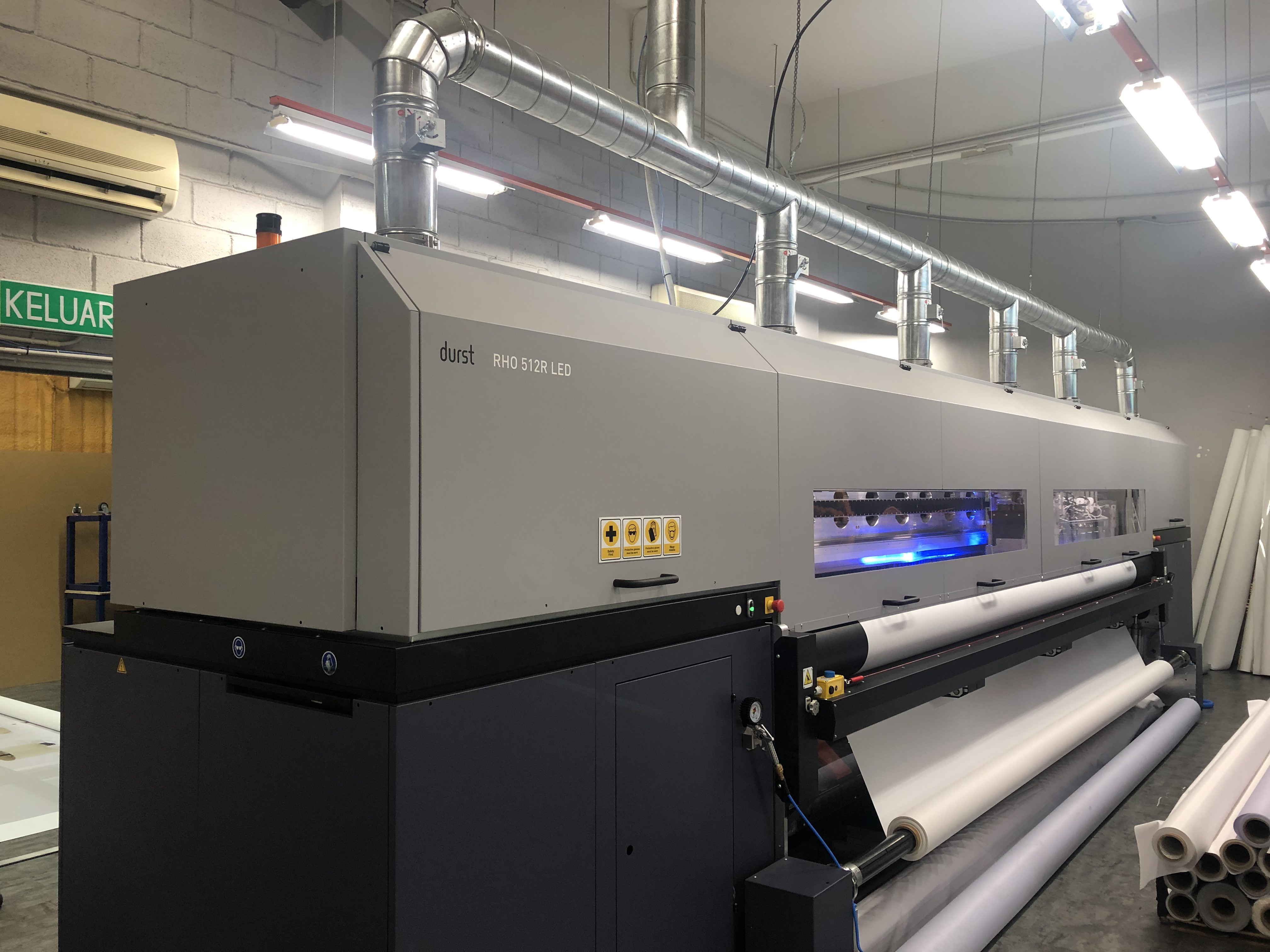
Nothing is more frustrating than receiving a large-format print or gallery wall exhibit only to discover pixelated imagery, unexpected color shifts, or missing text.
High-end digital printing requires a different approach than standard office printing or web publishing. Whether you are prepping an exhibition photograph, a storefront lightbox graphic, or a commercial display banner, setting up your files correctly during the pre-press stage guarantees that your final physical print reflects your creative vision.
Here is a comprehensive checklist to help you prepare your digital files like a professional.
1. Set the Correct Color Space: RGB vs. CMYK
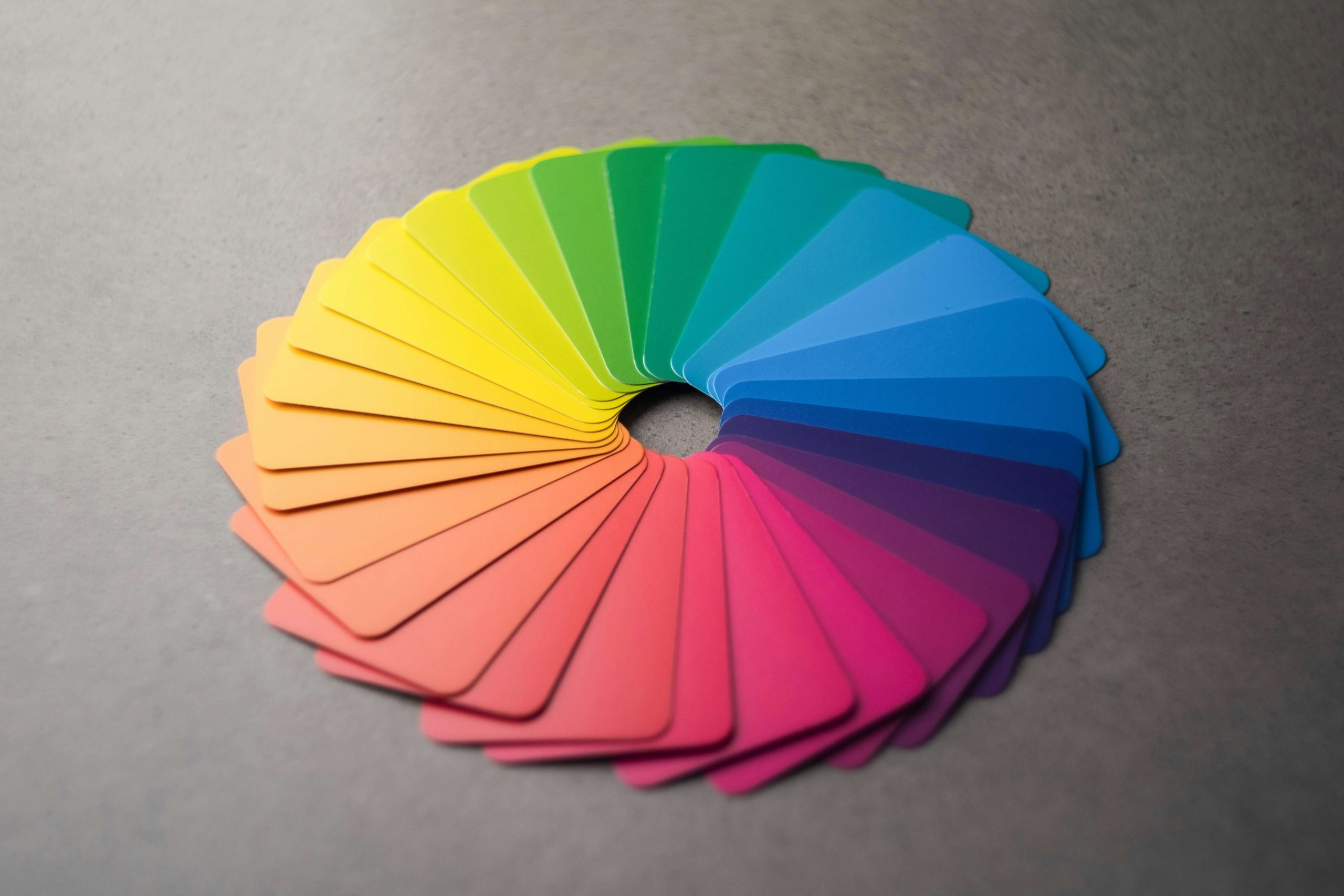
One of the most common pitfalls in print preparation is working in the wrong color mode.
● For Fine-Art & Photography: Most professional digital fine-art printers (like high-end photo engines) prefer files kept in an expanded RGB space (such as Adobe RGB 1988 or ProPhoto RGB). This allows the printer’s multi-ink gamut to utilize subtle tonal variations, especially in deep shadow detail and vibrant skin tones.
● For Commercial & Vector Graphics: Large-format signage, corporate logos, and vector layouts should be converted to CMYK (such as FOGRA39 or Coated FOGRA39 standards) prior to export to match commercial ink setups accurately.
Pro Tip: Always embed your ICC profile when saving the file so our prepress team knows the exact color environment your artwork was created in.
2. Resolution and Scaling for Large-Format Output
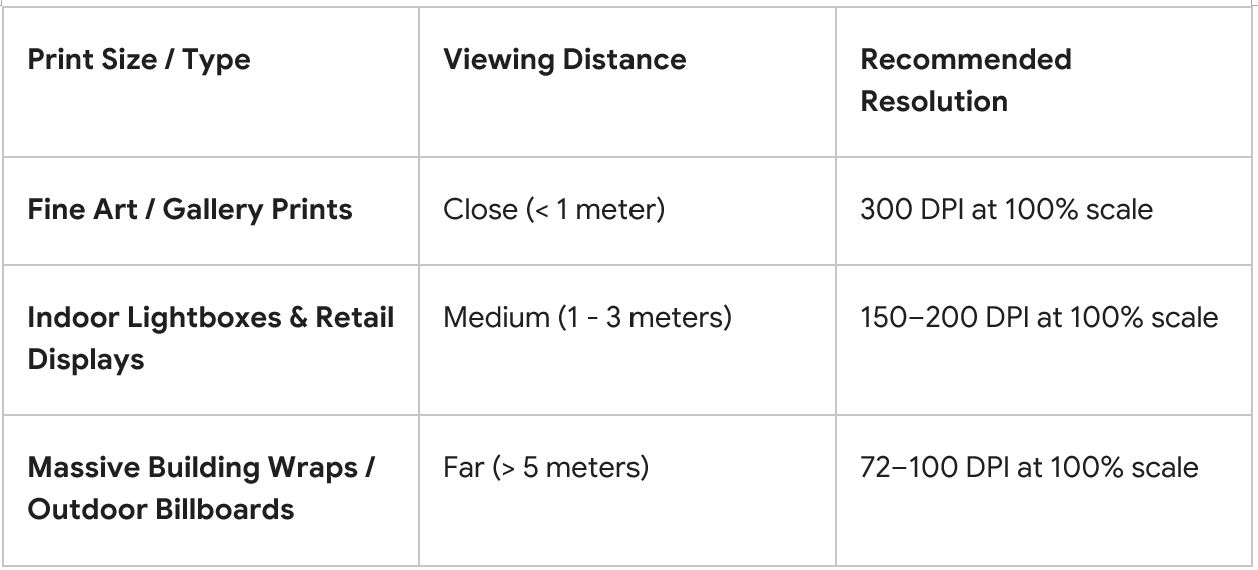
A common misconception is that every file needs to be 300 DPI (Dots Per Inch) regardless of physical dimensions. In large-format printing, resolution depends heavily on viewing distance.
3. Fonts, Vectors, and Image Embeds
To prevent missing asset errors when transferring files to the print laboratory:
● Convert Text to Outlines/Shapes: Always convert live text to outlines (Ctrl+Shift+O or Cmd+Shift+O in Illustrator) to avoid font substitution issues on the production engine.
● Embed Linked Raster Images: Do not leave images as external links. Embed all high-resolution links directly within your source design file.
4. Streamlining the Event Setup & Teardown Process
Physical materials require extra space for precise trimming, folding, or mounting:
● Bleed Area: Add a minimum of 3mm to 5mm bleed around all edges for standard rigid trims. For fabric lightboxes or wrapped canvas edges, ask your print studio for specific frame template dimensions (which may require up to 50mm of edge bleed).
● Safety Zone: Keep important elements (logos, text, focal points) at least 10mm to 15mm inside the final trim line to prevent crucial details from being cut off or obscured by frames and silicone edges.
5. Exporting the Optimal File Format
When your design is complete, export your print-ready asset in one of these industry-standard formats:
1. PDF/X-4 (Recommended): Preserves vector resolution, handles transparency effects reliably, and embeds all profiles and color assets safely.
2. TIFF (Uncompressed): Ideal for fine-art photography exports. Select LZW compression to keep file sizes manageable without compromising quality.
3. High-Quality JPEG: Acceptable for pure photographic output provided compression is set to Maximum (100% quality) with baseline standard encoding.
Let J&A Handle the Final Polish
Even if you are uncertain about file setup, you don't have to navigate it alone. At J&A Imaging Station, every submitted file undergoes a multi-point pre-flight check by our graphics team. From test-print approvals to color management calibration, we work directly with you to refine your assets before full production begins.
Have a complex commercial project or gallery setup in the pipeline?
[Submit your file or reach out to our prepress team at J&A Imaging Station today.]

LINKS
KEEP IN TOUCH
CONTACT
ADDRESS
18, Jalan PJU 3/46, Sunway Damansara, 47810 Petaling Jaya, Selangor, Malaysia
OPERATING HOUR
MONDAY - FRIDAY 9.00AM - 6.OOPM
SATURDAY 9.00AM - 1.OOPM
© 2017 J&A Imaging Station